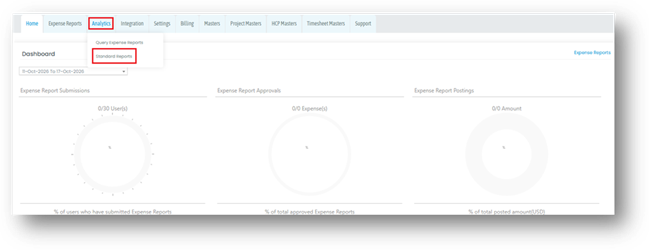
Gorilla Expense provides a range of Standard Reports that allow administrators to access, review, and analyze expense-related information within the application. You can access these reports by navigating to Analytics → Standard Reports.
These reports are designed to simplify expense tracking, support financial reporting, and provide better visibility into employee expenses and expense processing activities.
This article provides an overview of the selected Standard Reports, explaining their purpose, how to access them, and how they can be used to retrieve the required information from Gorilla Expense.
The most commonly used reports are
- Report By Employee
- Report By Expense Status and Expense Details
1. Report by Employee
The Report by Employee standard report in Gorilla Expense allows administrators to access expense-related information organized by employee. This report helps administrators review employee expense records and retrieve relevant information for reporting, auditing, and expense management purposes.
By using this report, administrators can access employee-specific expense information in a structured format, making it easier to review expense data and monitor employee spending.
How to Access the Report by Employee
Follow the steps below to access the report:
- Log in to the application as Admin.
- Navigate to Analytics → Standard Reports.
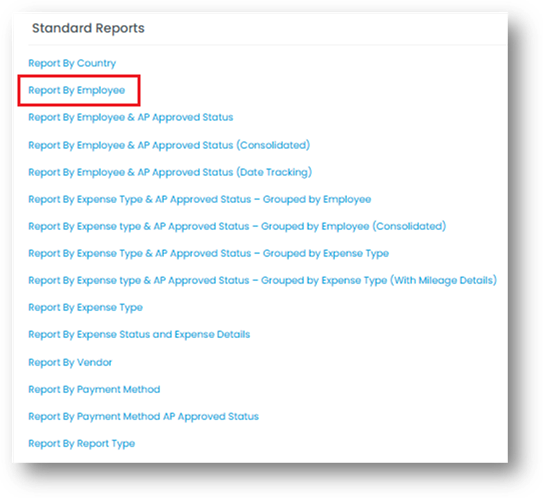
- Select Report by Employee from the list of available standard reports.
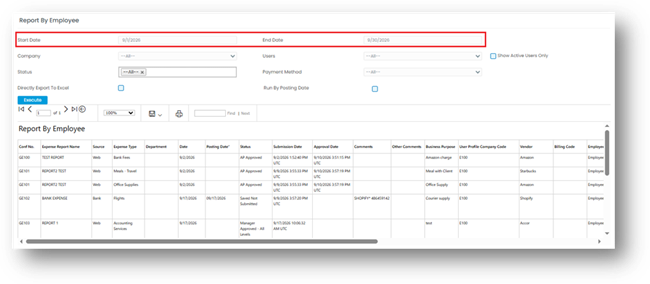
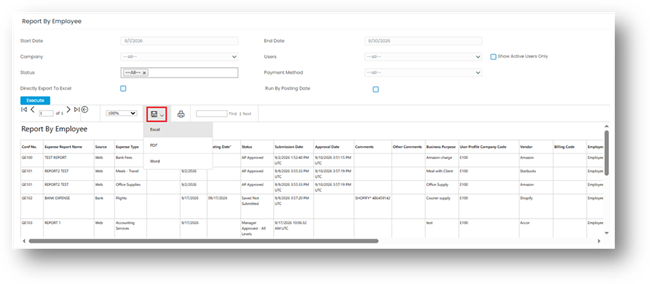
- Apply the available filters, to narrow down the report results.
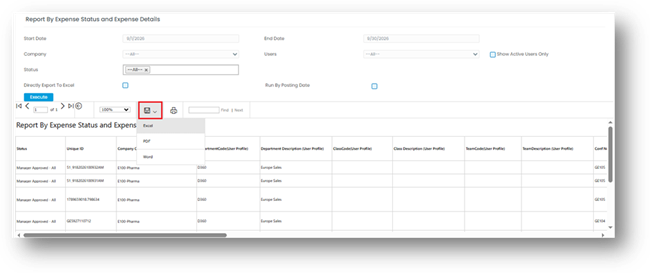
- You can also export the expense report for your records or further analysis. To export the report, click the floppy disk icon available on the screen to export the expense report from the application.
2. Report by Expense Status and Expense Details
The Report by Expense Status and Expense Details standard report allows administrators to review expense information based on expense status and access the corresponding expense details.
This report can be useful when administrators need to examine expenses and understand their current processing status. It provides a way to review expense-related information for monitoring, verification, and auditing purposes.
How to Access the Report
- Follow the steps below to access the report:
- Log in to the application as Admin.
- Navigate to Analytics → Standard Reports.
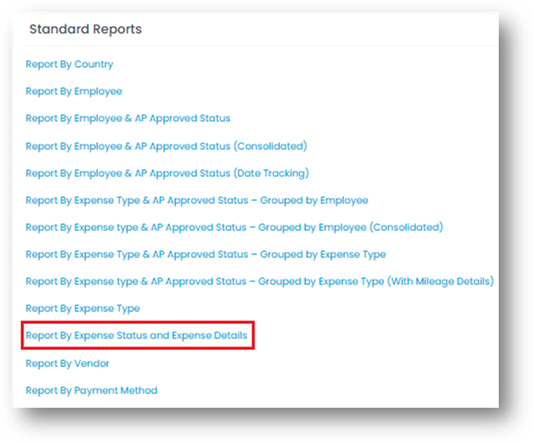
- Select Report By Expense Status and Expense Details from the list of available standard reports.
- Apply the available filters, to narrow down the report results.
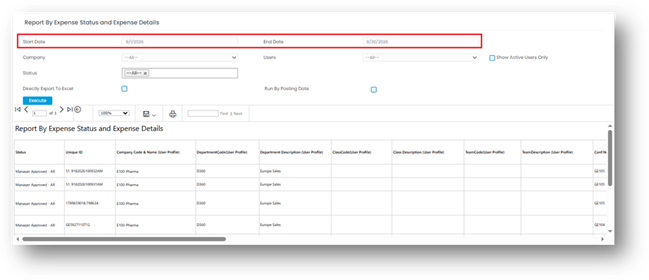
- You can also export the expense report for your records or further analysis. To export the report, click the floppy disk icon available on the screen to export the expense report from the application.