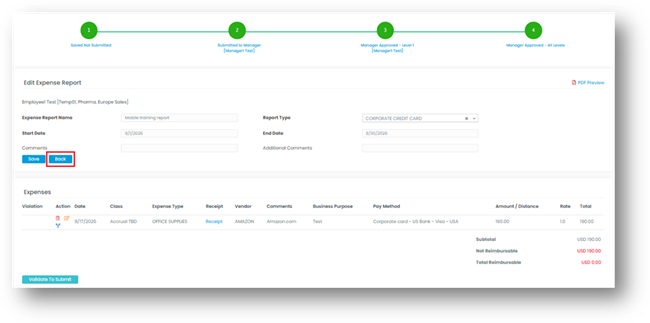
The Edit Expense Report feature allows administrators to review and make necessary corrections to expense reports directly within the application. This feature is particularly useful when an administrator identifies incorrect information or discrepancies in a submitted expense report that need to be corrected.
With the help of the Admin Console, administrators can edit expense reports, update the required information, and save the changes to ensure that the reports contain accurate and up-to-date details.
This functionality helps administrators maintain accurate expense records, correct errors efficiently, and ensure that expense reports reflect the appropriate information.
Steps to Edit an Expense Report
Follow the steps below to edit an expense report using the Admin Console.
- Log in to the application as an admin.
- Then go to Analytics -> Query Expense Reports
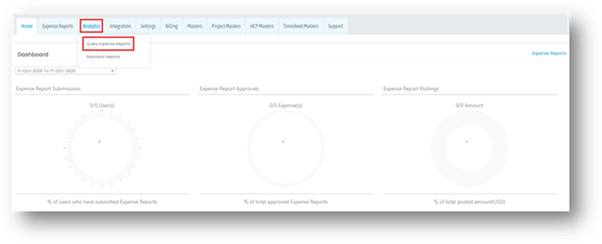
- The screen includes a search filter that allows you to quickly locate the expense report you want to modify. You can filter the results using the employee name or the expense report confirmation number to find the required report. There are also other search filters available on the screen that you can use.
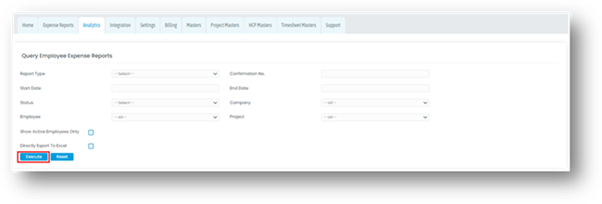
- Apply the appropriate filter to search for the expense report you want to modify.
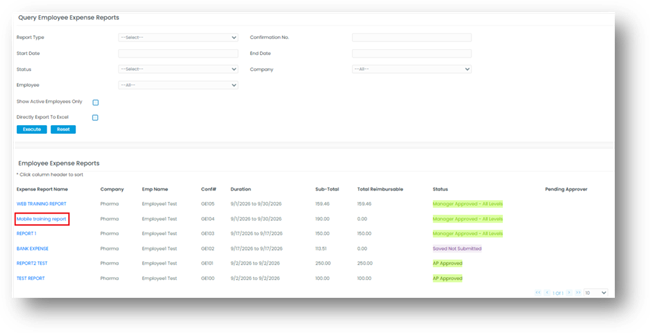
- Once the results are filtered, the matching expense reports will be displayed on the screen.
- Click on the expense report name to open the report and proceed with the necessary modifications.
- Click on the Edit Report button to edit the report details.
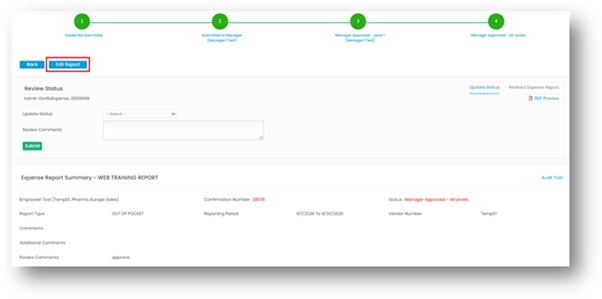
- On the Edit Expense Report screen, locate the Action column, where you will find a pencil icon that allows you to edit individual expenses. Click the pencil icon corresponding to the expense you want to modify, make the necessary corrections, and click Save to save your changes.
- In addition to editing individual expenses, you can also modify the expense report header details, such as the expense report name, start date, and end date. Ensure that you review all the updated information and save your changes once you have completed the modifications.
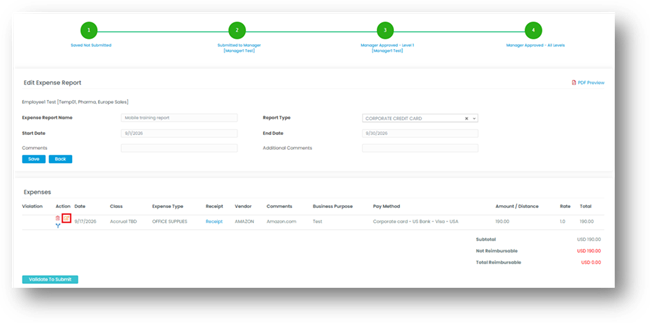
10. Review the updated details to ensure that all changes are accurate. Once you have verified the information, click the Back button to return to the Query Employee Expense Reports screen.