
The Tax Rate master section in Gorilla Expense allows administrators to define and manage VAT rates, associated GL codes, and applicable validity periods for each expense type. The Tax Rate setup helps automate tax calculations within the system, minimising manual errors and ensuring accurate reporting. It enables users to associate specific tax rates with particular expense types, ensuring seamless integration with accounting systems.
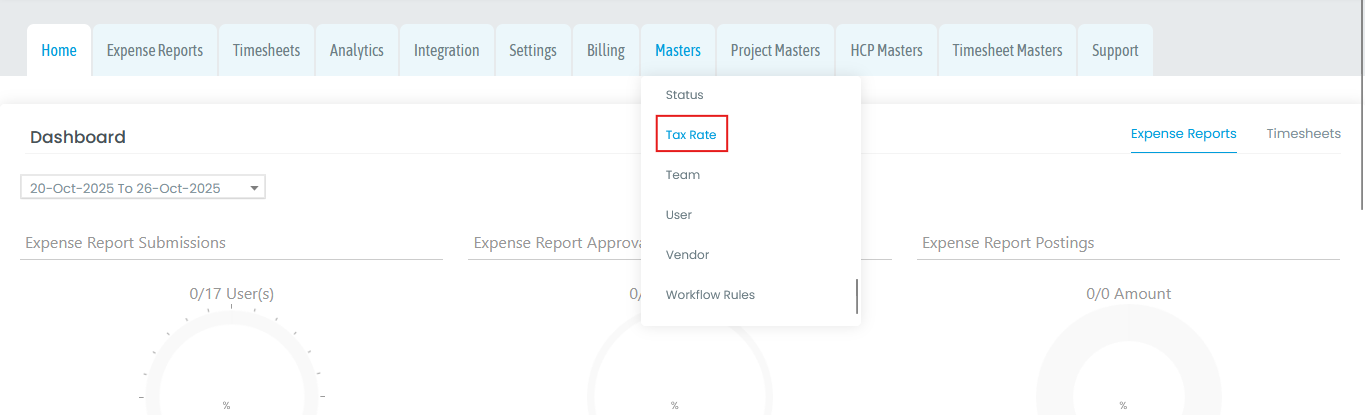
Click on the "Masters" tab --> select the "Tax Rate" as shown below.
1] Create Tax rate:
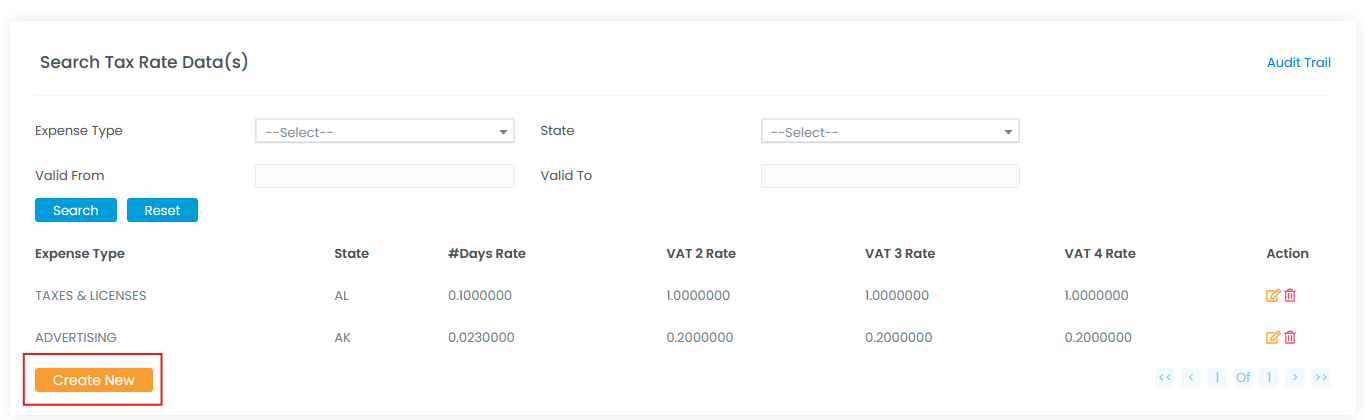
To create a new tax rate, click on the "Create New" button as shown below.
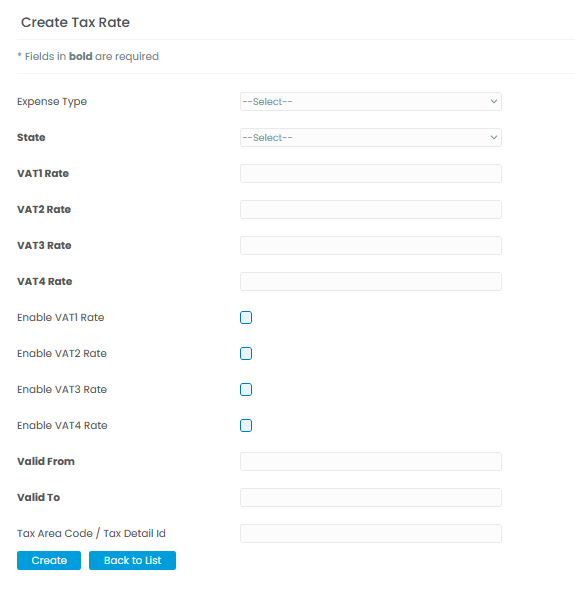
The fields are described below.
1) Expense Type (Required): Select the created expense type (e.g., Travel, Meals, Accommodation, etc.).
2) State (Required): Choose the state or region where the expense was incurred.
3) VAT1 Rate (Required): Enter the applicable percentage for the first VAT rate.
4) VAT2 Rate (Required): Enter the applicable percentage for the second VAT rate, if applicable.
5) VAT3 Rate (Required): Enter the applicable percentage for the third VAT rate, if applicable.
6) VAT4 Rate (Required): Enter the applicable percentage for the fourth VAT rate, if applicable.
7) Enable VAT1 Rate (Required): Select this option to activate the first VAT rate for calculation.
8) Enable VAT2 Rate (Required): Select this option to activate the second VAT rate for calculation.
9) Enable VAT3 Rate (Required): Select this option to activate the third VAT rate for calculation.
10) Enable VAT4 Rate (Required): Select this option to activate the fourth VAT rate for calculation.
11) VAT1 GL Code (Optional): Enter the General Ledger (GL) code associated with the first VAT rate for accounting purposes.
12) VAT2 GL Code (Optional): Enter the General Ledger (GL) code associated with the second VAT rate for accounting purposes.
13) VAT3 GL Code (Optional): Enter the General Ledger (GL) code associated with the third VAT rate for accounting purposes.
14) VAT4 GL Code (Optional): Enter the General Ledger (GL) code associated with the fourth VAT rate for accounting purposes.
15) Valid From (Required): Enter the start date from which the expense type and VAT settings will be valid.
16) Valid To (Required): Enter the end date until which the expense type and VAT settings will remain valid.
17) Tax Area Code / Tax Detail ID (Optional): Enter the unique tax area code or tax detail identifier associated with the expense for reporting and compliance purposes.
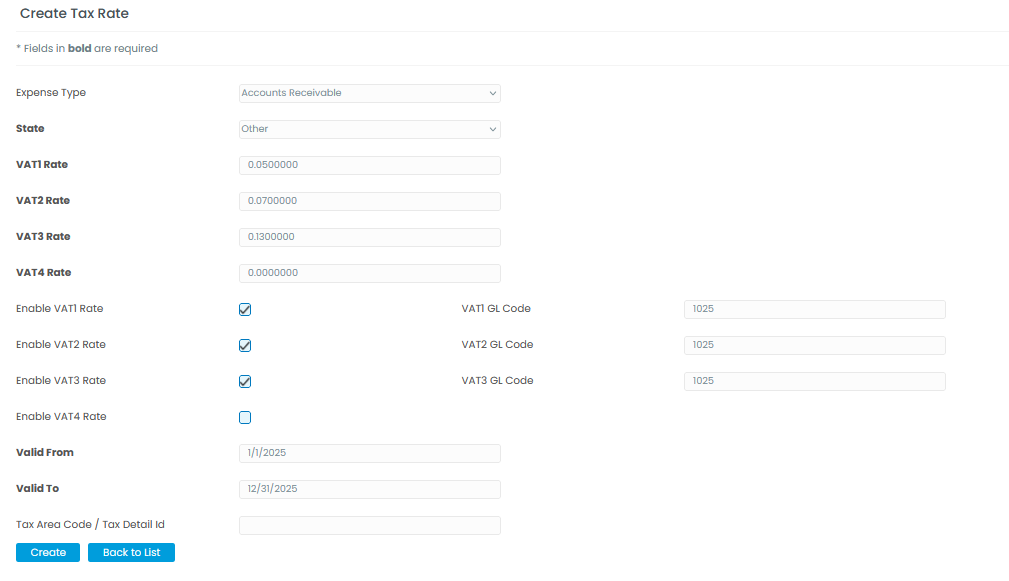
The newly created tax rate will be displayed on the list.
2] Edit Tax Rate:
The small pencil icon is for editing the existing tax rate as shown below:
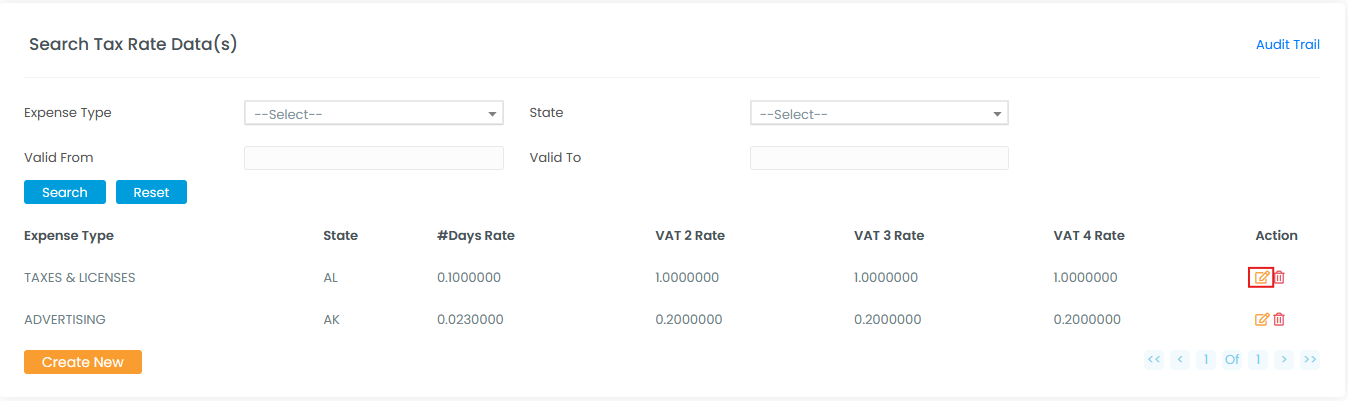
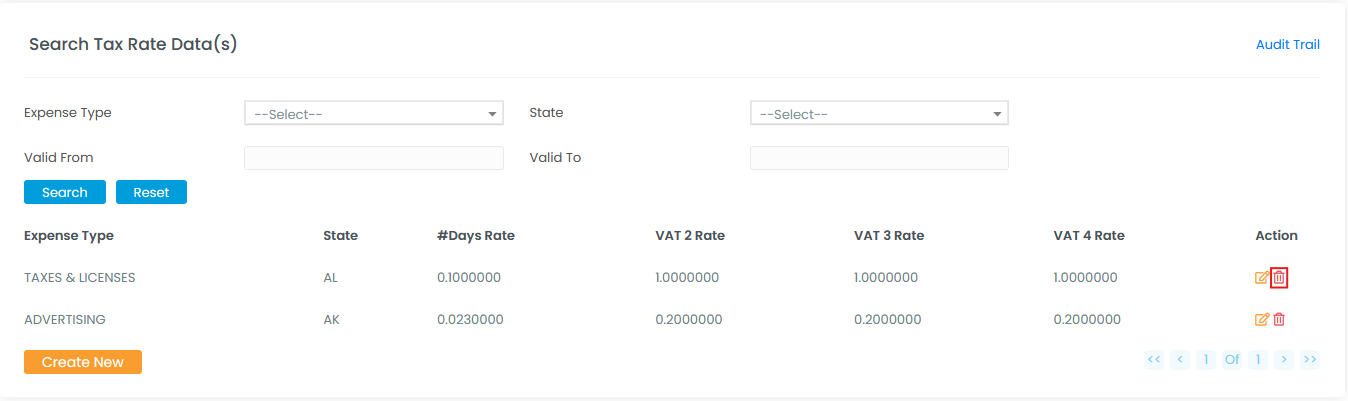
3] Delete Tax Rate:
The delete icon is to delete the tax rate created, as shown below.
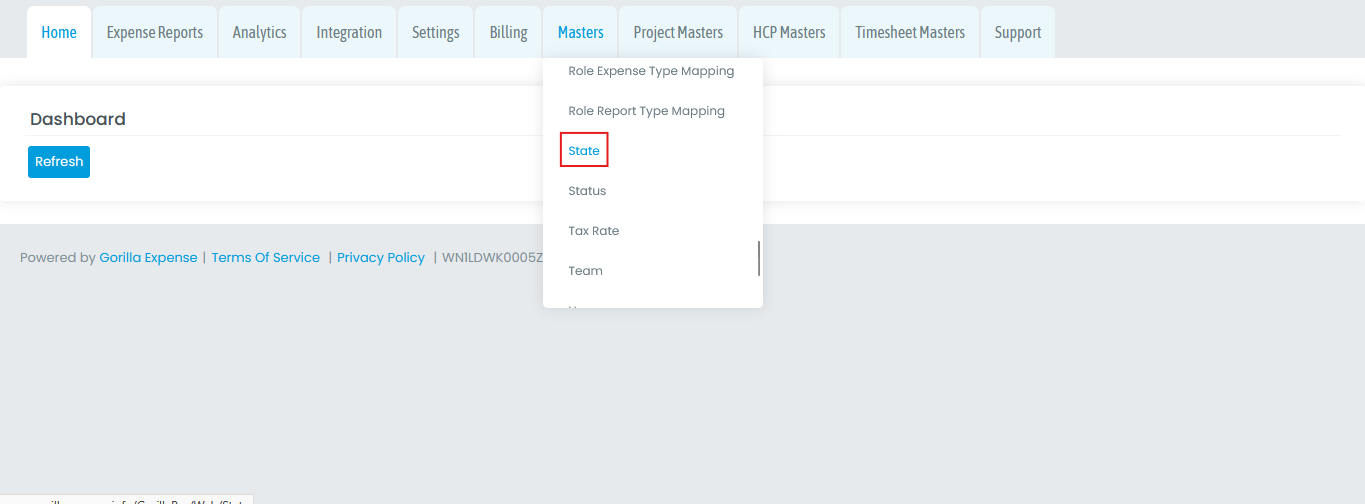
To maintain the Tax rate data, we need to maintain the state/province data in the application. So to create or edit an existing State, click on the "Masters" tab --> select the "State" as shown below.
The default State list will be already present in the application. So to edit the existing state, click on the small pencil icon as shown below:
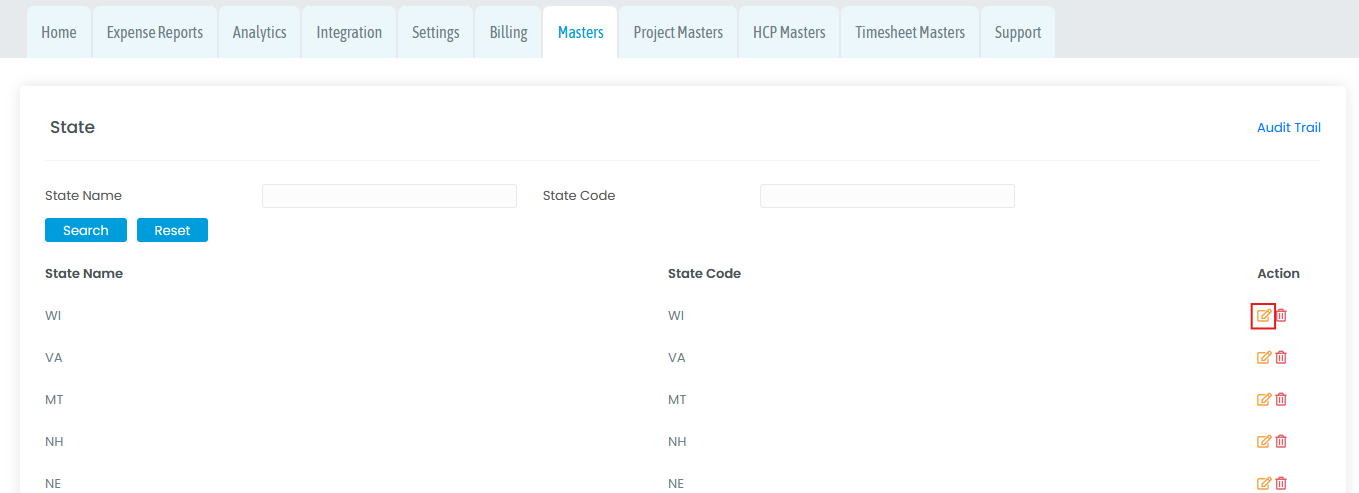
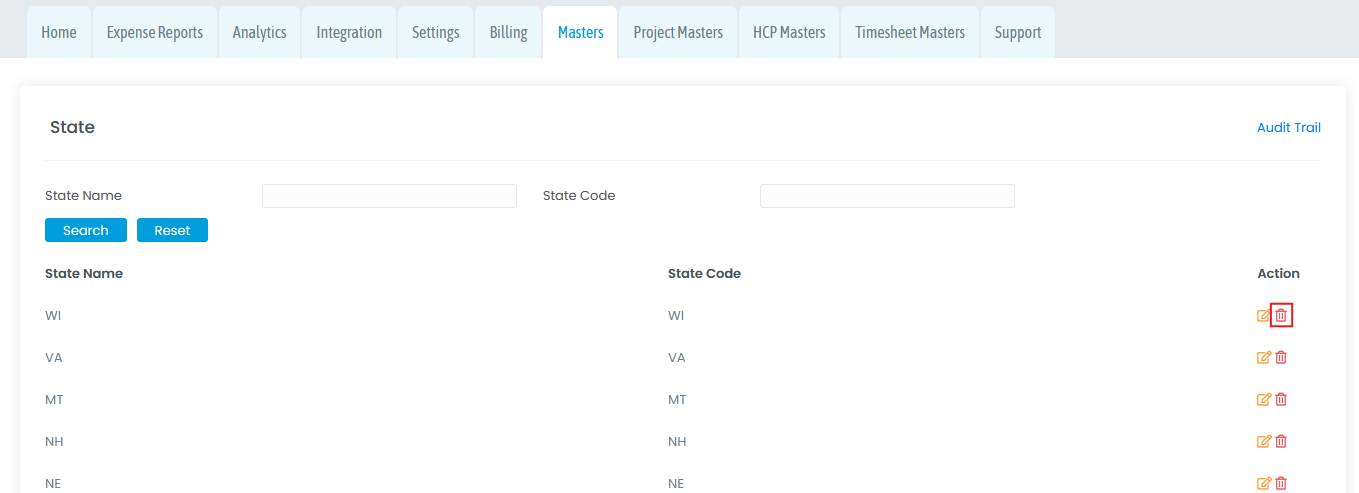
And the delete icon is to delete the state created, as shown below.
And to maintain the expense type master data, please refer to - Create/Edit Expense Types & Expense Policies : Gorilla Expense
NOTE: Once the tax rate data is created, ensure the Tax Rate feature is enabled in your environment. If you have not used this feature before, you can request support@gorillaexpense.com to add it.